
System-Wide Audio Equalizer for Windows
Peace Equalizer gives you 31-band EQ, effects, AutoEQ for 1,000+ headphones, and real-time visualization. Works across every app, game, and media player on your PC.
What Is Peace Equalizer?
A full-featured audio equalizer and effects GUI that gives you precise control over every sound on your Windows PC.
System-wide audio control, simplified
Peace Equalizer is a free, open-source graphical interface for Equalizer APO that turns Windows audio management into something you can actually see and adjust. Instead of editing Equalizer APO’s raw text configuration files, Peace Equalizer gives you a proper GUI with sliders, graphs, presets, and an effects panel. The result is a 31-band parametric equalizer that applies to all system audio — music players, games, video calls, streaming services, and everything else running on your machine.
Developed by Peter Verbeek and written in AutoIt, Peace Equalizer has been around long enough to earn a 4.9/5 star rating across 134 reviews on SourceForge. It pulls in more than 30,000 downloads per week and received SourceForge’s “Staff Pick” badge in July 2019. The program is licensed under GPLv2 and costs nothing to use.
Who is it for?
If you want better sound from your headphones, speakers, or multi-channel setup but don’t want to pay for commercial audio software, Peace Equalizer is the tool most audiophile communities recommend. You will find it mentioned regularly on r/headphones, r/audiophile, and Head-Fi, where users praise its flexibility and the fact that it works at the system level rather than inside a single app.
The program handles stereo, 5.1, and 7.1 speaker configurations with per-channel control. It includes a built-in AutoEQ database with correction profiles for over 1,000 headphone models, so you can load a scientifically-measured curve for your specific pair and fine-tune from there. Power users appreciate the automation features — Peace Equalizer can switch EQ profiles automatically based on which audio device is active or which application is in focus.
Platform and requirements
Peace Equalizer runs on Windows Vista through Windows 11, supporting both 32-bit and 64-bit systems. The installer is 55.7 MB (current version 1.6.9.11, released November 2025). One thing to know: Equalizer APO must be installed first, since Peace Equalizer acts as its frontend. The two programs work together — APO handles the audio processing at the driver level, and Peace Equalizer provides the visual interface on top of it.
Ready to hear the difference? Download Peace Equalizer or check the full feature list below.
Key Features
Peace Equalizer wraps Equalizer APO in a full-featured GUI with sliders, graphs, presets, and audio effects that work across every app on your PC.
31-Band Parametric Equalizer
Adjust up to 31 gain-dB sliders per channel with configurable frequency, gain, and Q values. Each band supports peak, low-shelf, high-shelf, bandpass, notch, and all-pass filter types — more granular control than most standalone EQ software like FxSound or Boom 3D.
AutoEQ for 1,000+ Headphones
Built-in AutoEQ interface pulls correction profiles for over 1,000 headphone models. Pick your headphones from the list and Peace applies a frequency-response correction curve automatically. Profiles are based on community measurements from the oratory1990 and AutoEQ databases.
Real-Time Frequency Graph
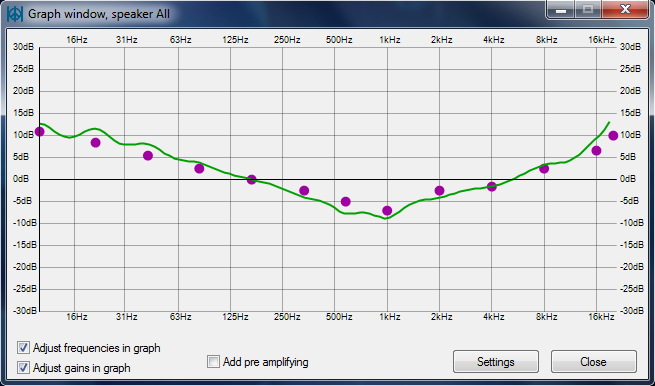
A dedicated graph window draws the combined EQ curve for each speaker in real time. You can see exactly how your adjustments change the frequency response before and after applying filters, which helps avoid clipping or unexpected peaks.
Effects Mixer Panel
Beyond EQ, Peace includes a separate effects panel with crossfeed, bass boost, treble boost, virtual surround, delay, reverb, and channel routing. You can stack multiple effects, adjust their intensity, and save combinations as presets for different listening scenarios.
Presets and Profile System
Ships with built-in presets like Rock, Dance, Classic, and Bass Boost. You can create unlimited custom presets and switch between them with a single click, a hotkey, or from the system tray. Each preset stores the full EQ curve plus all effects settings.
Multi-Speaker Support
Configure separate EQ curves for up to 9 speakers, covering stereo, 5.1, and 7.1 surround setups. Each speaker channel gets its own set of sliders and pre-amplification controls, so you can fine-tune your center, sub, and surround channels independently.
Device-Specific Configurations
Assign different EQ profiles to different playback devices. Your headphones, desktop speakers, and Bluetooth earbuds can each load their own preset automatically when Peace detects the active output device. No manual switching needed.
App-Based Automation
The automation window lets you assign profiles to specific applications. Launch a game and Peace can load your gaming preset. Open Spotify and it switches to your music profile. Rules trigger on app launch or device change without any manual steps.
MIDI Controller Support
Map EQ sliders and effects to physical MIDI controllers for hands-on audio adjustment. DJs and audio engineers who want tactile knobs and faders can bind any MIDI device to Peace controls, turning hardware into a real-time EQ console.
Hearing and Headphone Tests
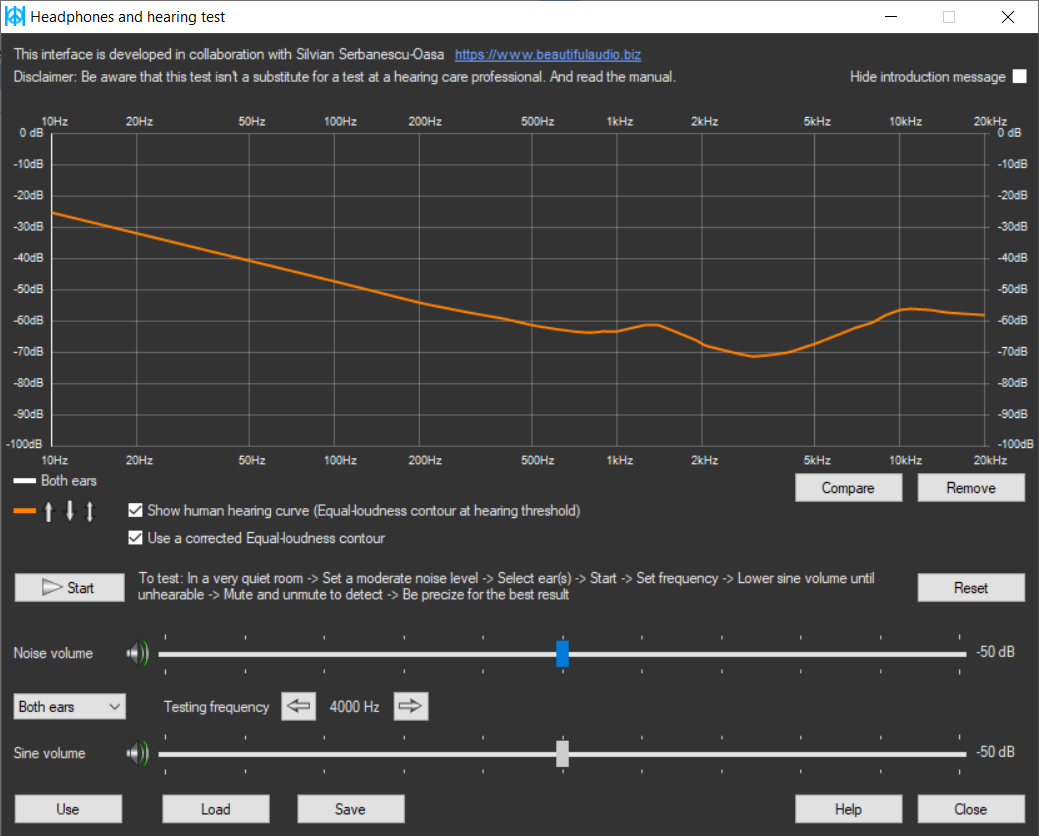
Built-in test tools help you check your hearing range and verify headphone channel balance. The hearing test plays tones across frequencies while the headphone test confirms left/right channel placement. Both are useful before building a custom EQ profile.
Peace Equalizer is free, open-source, and updated regularly. Download it now to start shaping your audio.
System Requirements
Peace Equalizer is lightweight and runs on most Windows machines. Here is what you need to get started.
| Component | Minimum | Recommended |
|---|---|---|
| Operating System | Windows Vista (32-bit or 64-bit) | Windows 10 or 11 (64-bit) |
| Processor | 1 GHz single-core CPU | 2 GHz dual-core or better |
| RAM | 512 MB | 2 GB or more |
| Disk Space | 100 MB free (Peace + Equalizer APO) | 200 MB free (includes presets and AutoEQ data) |
| Audio Device | Any Windows-compatible playback device | Dedicated sound card or USB DAC for best results |
| Display | 1024 x 768 resolution | 1920 x 1080 for full 31-band slider view |
| Dependencies | Equalizer APO (required) | Equalizer APO latest version |
| Internet | Not required for core use | Needed for AutoEQ profile downloads |
Peace Equalizer supports both 32-bit and 64-bit editions of Windows. The installer is 55.7 MB.
Download Peace Equalizer
Get the full installer with 31-band equalizer, effects mixer, and AutoEQ profiles for 1,000+ headphone models. Free, open-source, no registration required.
Peace Equalizer v1.6.9.11
Released November 2, 2025 — Latest stable build
Having trouble? Check the Getting Started guide or visit the FAQ section.
Screenshots
See Peace Equalizer in action across its different views and modes.
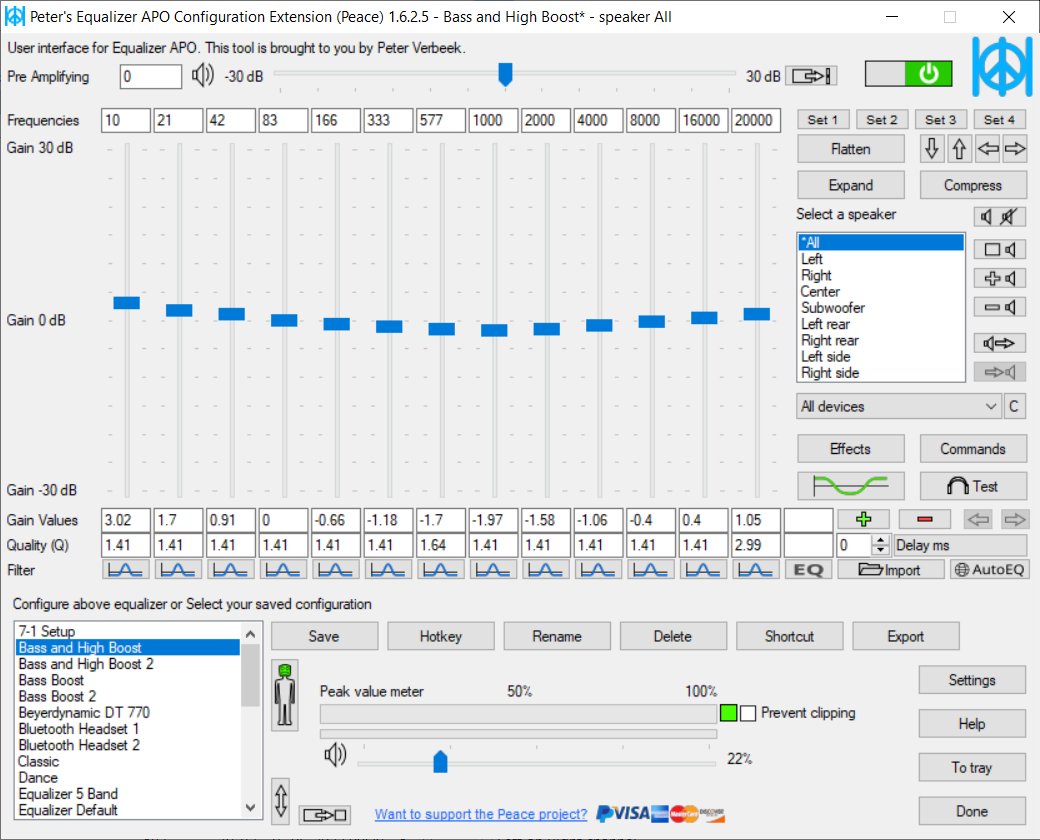
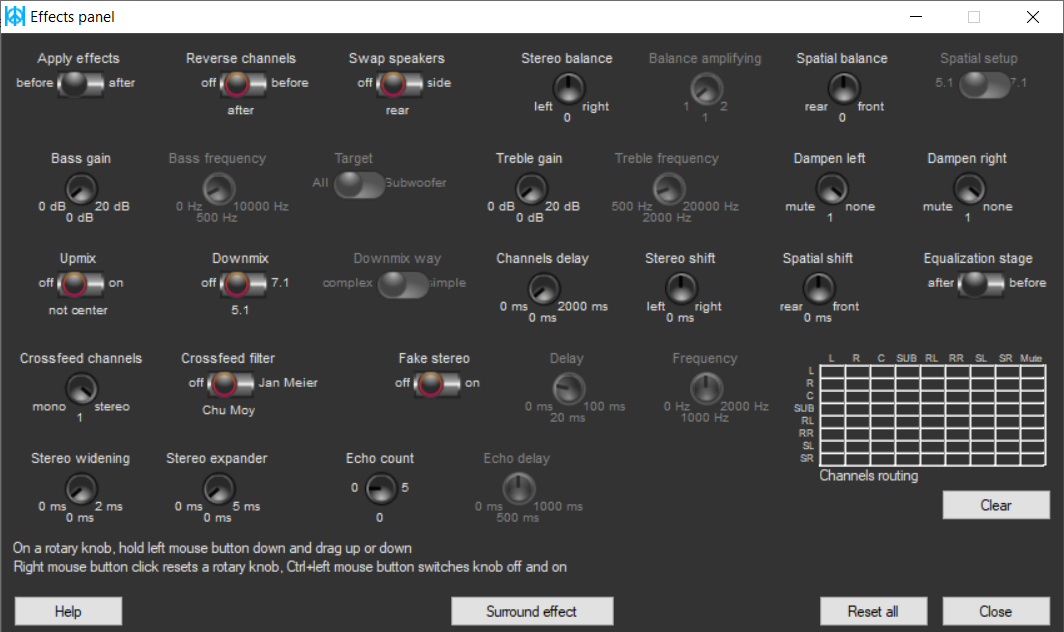
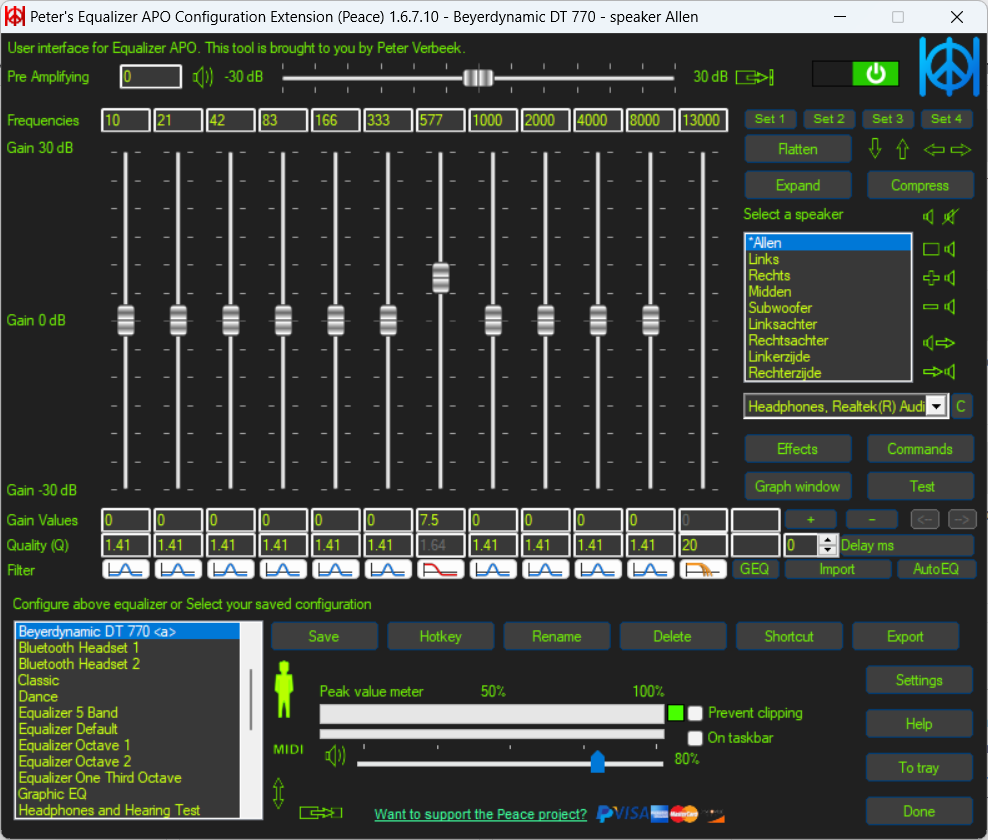
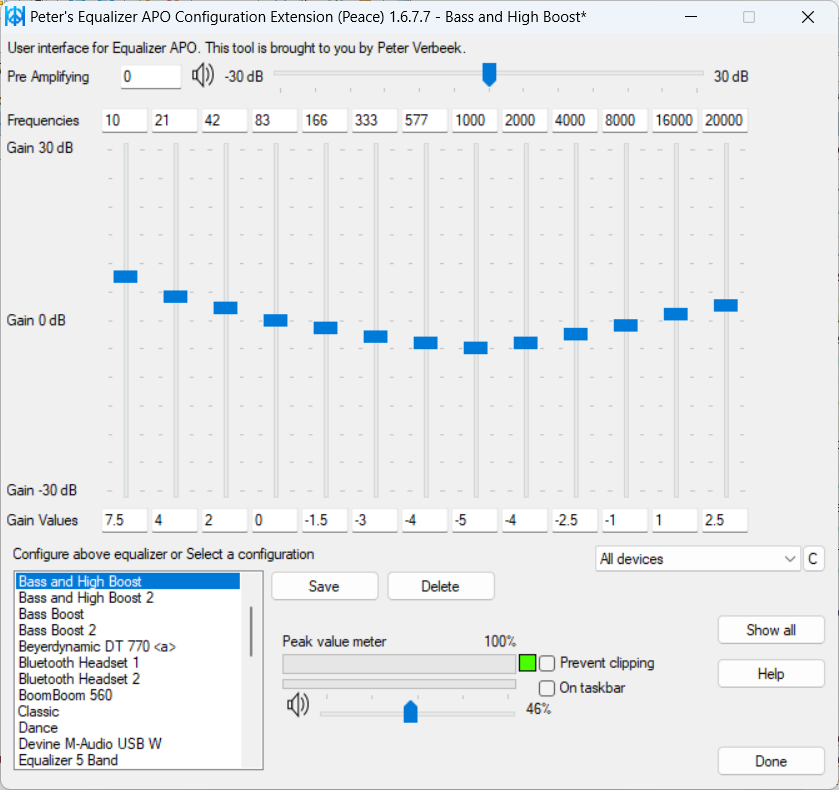
Screenshots from Peace Equalizer v1.6.9 running on Windows. Click any image to enlarge.
Getting Started with Peace Equalizer
A complete walkthrough from download to your first custom EQ profile. Peace Equalizer requires Equalizer APO as its audio engine, so we will install both.
Downloading Peace Equalizer
Peace Equalizer works as a graphical front-end for Equalizer APO, which means you need two downloads: Equalizer APO (the audio engine) and Peace (the GUI). Both are free and open source.
Head to our download section above to grab PeaceSetup.exe (55.7 MB). The installer bundles both the 32-bit and 64-bit builds, so you only need one file regardless of your system architecture. If you have not installed Equalizer APO yet, download its installer (about 14 MB) from the same section.
There is only one stable release channel for Peace — the developer (Peter Verbeek) publishes each version on SourceForge after thorough testing. No beta channel exists. The current release is v1.6.9.11, and the EXE installer is the only format offered. There is no MSI or portable ZIP option, but Peace installs into a single folder inside Equalizer APO’s config directory, making it easy to back up or move.
Installation Walkthrough
Part A — Install Equalizer APO First
Equalizer APO is the audio processing engine that runs underneath Peace. Without it, Peace has nothing to control.
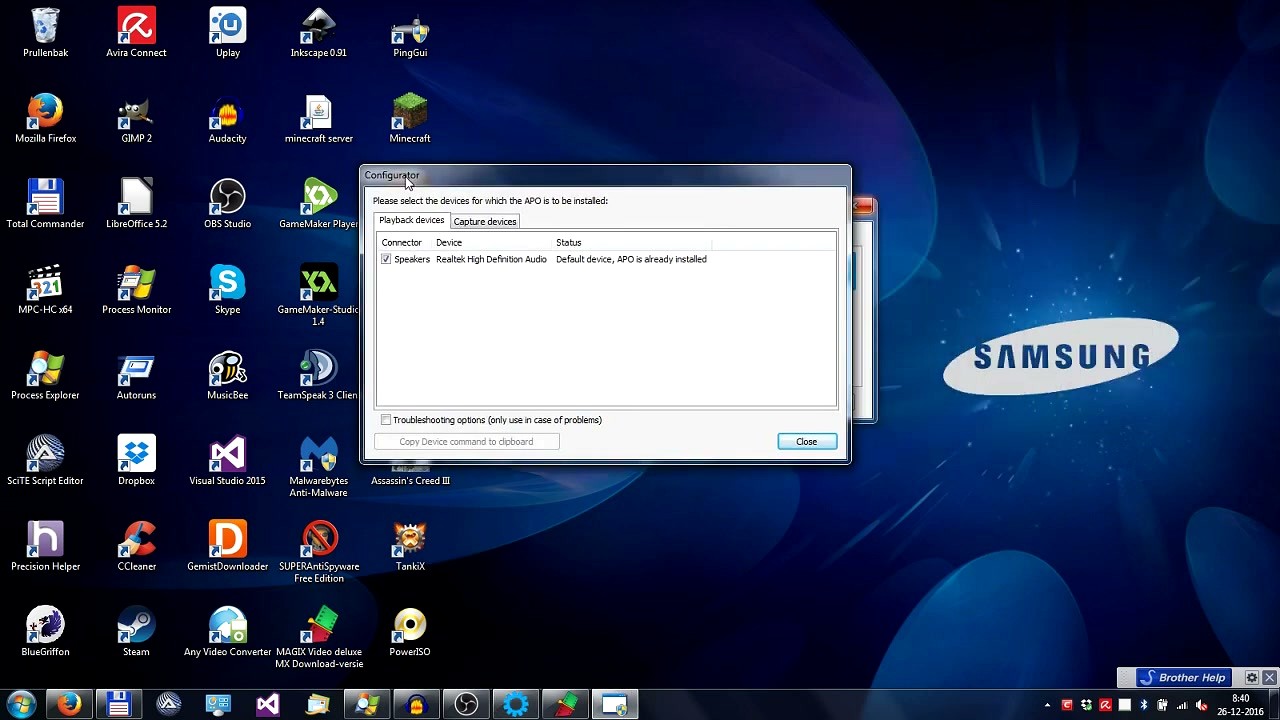
- Run EqualizerAPO_x.x.x.exe. Click Next, accept the GPLv2 license, click Next again until you reach the device selection window.
- Tick the checkbox next to every playback device you want to equalize (typically your speakers or headphones). If you see multiple entries, pick the one marked Default device.
- Leave "Install as SFX/EFX" selected — this is the correct mode for Windows 10 and 11. On certain older Windows builds you may need to switch to "Install as LFX/GFX," but SFX/EFX works for most people.
- Click OK, then Finish. The installer will ask you to restart your PC — do it now. Equalizer APO hooks into the Windows audio pipeline during boot, so a reboot is required.
Part B — Install Peace
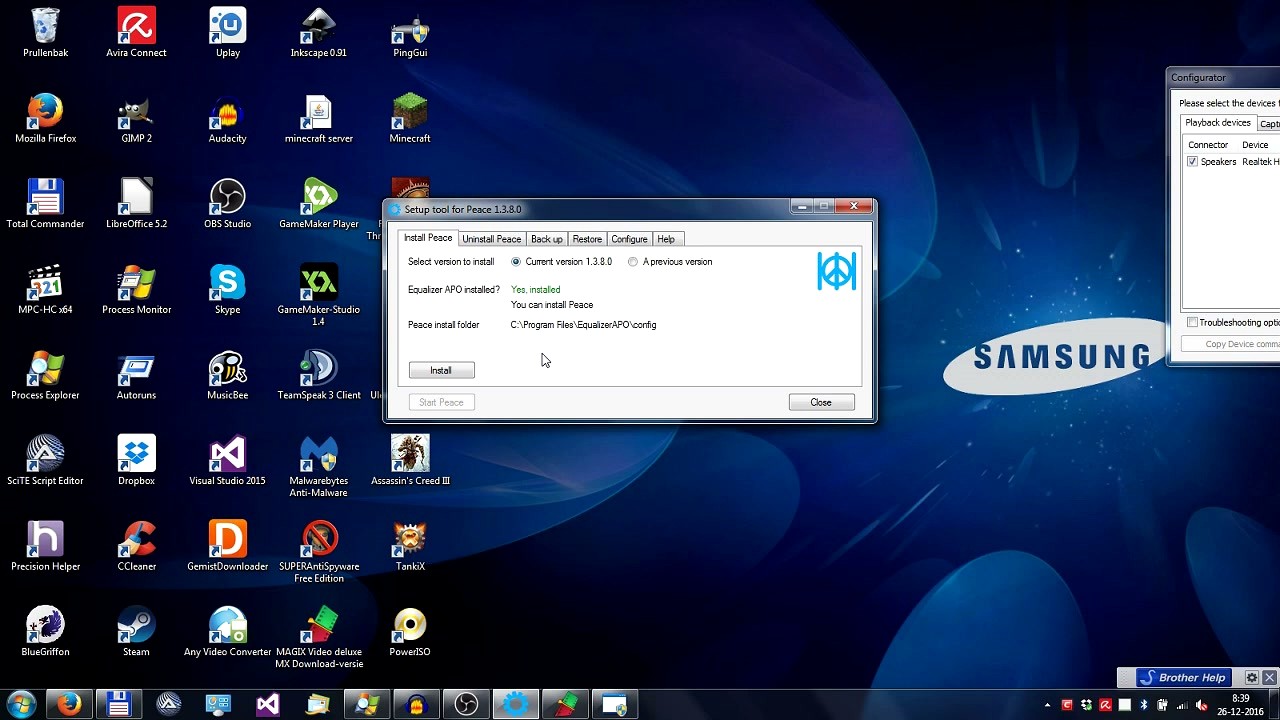
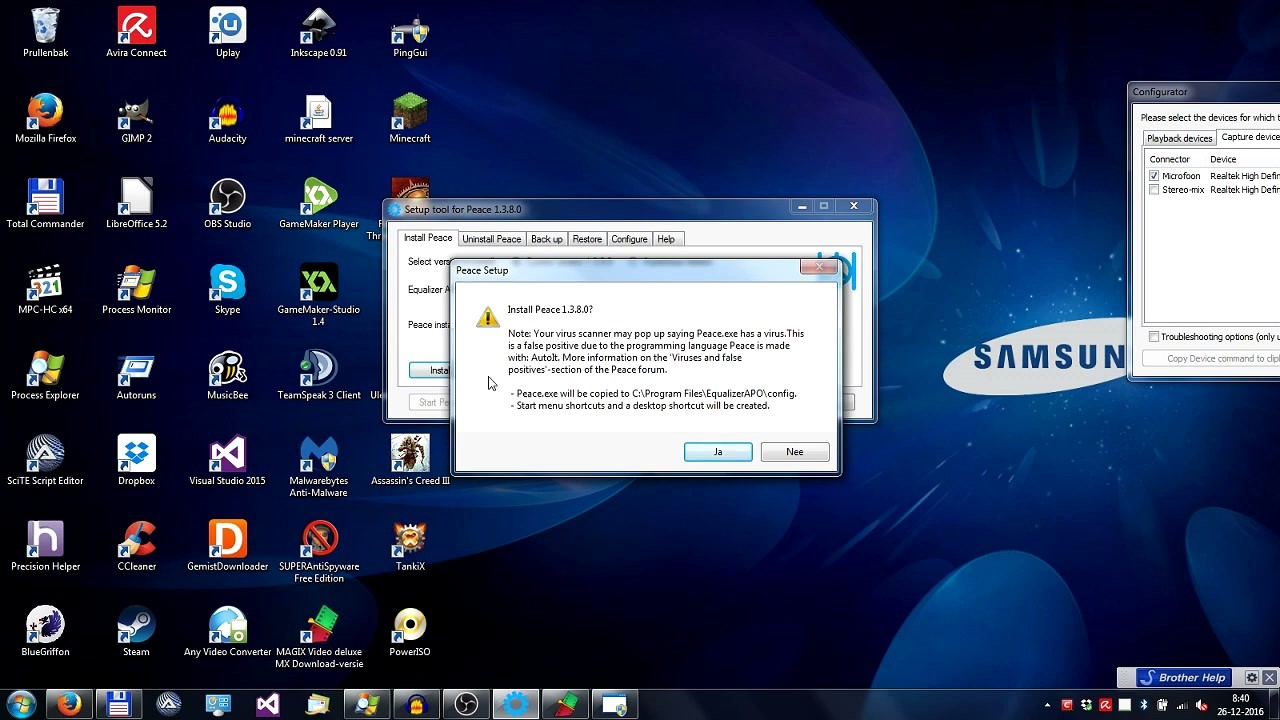
- After the reboot, run PeaceSetup.exe. The Setup Tool window opens with several tabs across the top: Install Peace, Uninstall Peace, Back up, Restore, Configure, and Help.
- On the Install Peace tab you will see "Equalizer APO installed?" with a green Yes, installed confirmation. If this says "No," go back and install Equalizer APO first.
- The install folder defaults to
C:Program FilesEqualizerAPOconfig. Leave this as is. - Click Install. A confirmation dialog appears warning that your antivirus may flag Peace.exe as a false positive because it is written in AutoIt. This is normal — click Yes to proceed.
- Peace.exe is copied into the config folder, and Start Menu plus desktop shortcuts are created automatically.
Peace is Windows-only (Vista through Windows 11). There are no macOS or Linux builds. If you need system-wide EQ on macOS, look at eqMac; on Linux, EasyEffects (PipeWire) or PulseEffects fill a similar role.
Initial Setup & Configuration
Launch Peace from the desktop shortcut or Start Menu. On the very first run, two things happen back to back.
Overwrite config.txt
Peace asks whether it should take over Equalizer APO’s config.txt file. Click Yes. This lets Peace write its EQ settings directly to the file that Equalizer APO reads. If you skip this, Peace will open but your EQ changes will not apply to the audio output.
Choose Your Interface
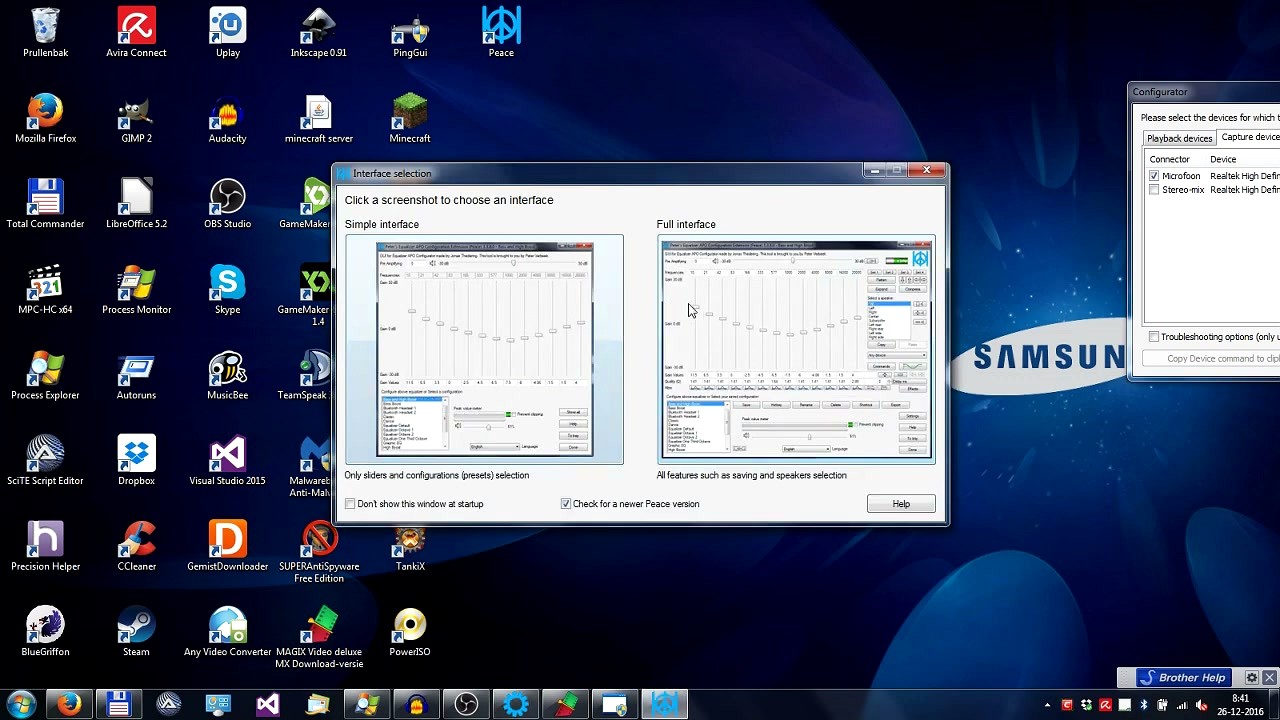
An interface selection window pops up with two screenshots side by side:
- Simple interface — only shows EQ sliders and a preset list. Good if you just want quick presets without extra controls.
- Full interface — adds speaker selection, gain values, quality (Q) controls, filter type selectors, effects panel, commands window, and per-device profiles. Pick this if you want real control.
For most users, Full interface is the better choice because you can always ignore the advanced panels, but you cannot access them from the Simple view without switching later. You can change this any time from Settings > Interface.
Essential Settings to Check
- Language: Bottom-right dropdown. Set your preferred language from 20+ available translations.
- Prevent clipping: Checkbox near the peak value meter. Enable this so Peace automatically reduces pre-amplification when your boosts would cause distortion.
- Check for a newer Peace version: Visible on the interface selection screen. Keep this ticked so you get notified when updates drop.
- Device dropdown: If you have multiple audio devices (speakers, headphones, USB DAC), make sure the correct one is selected in the "Any device" dropdown near the top-right of the main window.
Your First EQ Profile
With Peace open in Full interface mode, here is how to create a custom EQ profile from scratch. Play some music or a YouTube video in the background so you can hear changes in real time.
Understanding the Layout
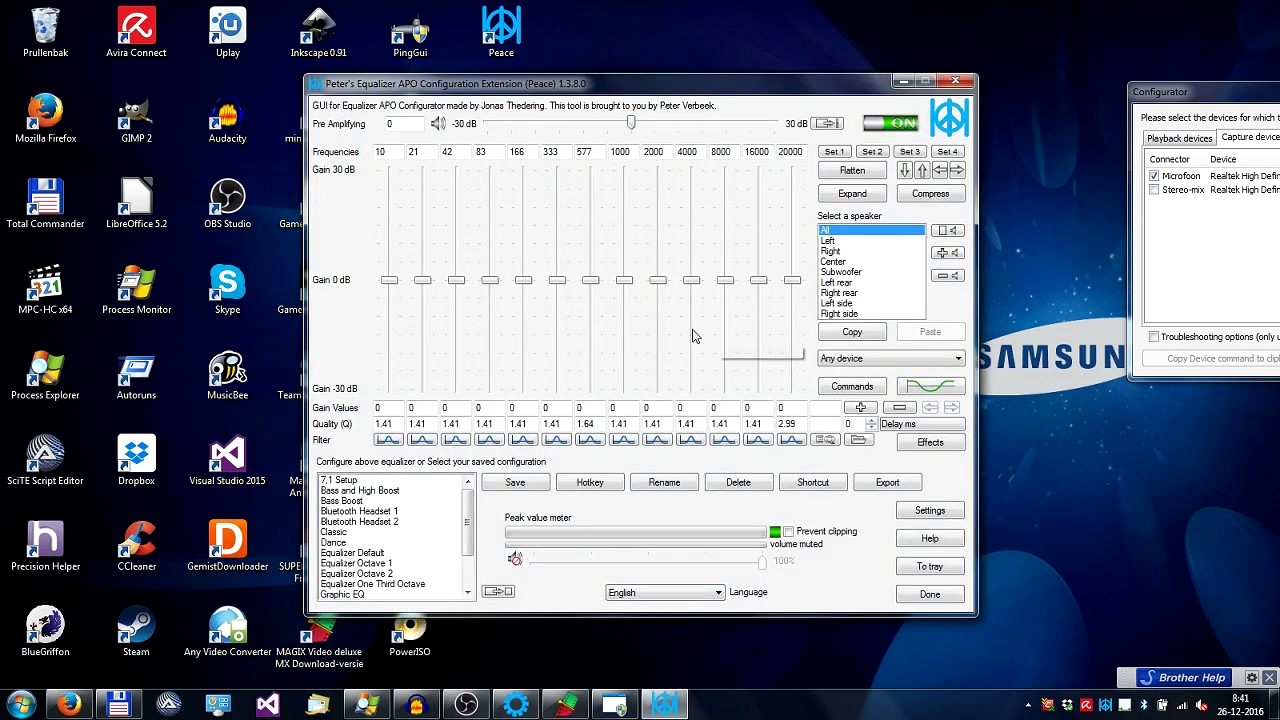
The main window shows up to 31 frequency sliders arranged left to right from 10 Hz (deep bass) to 20 kHz (high treble). Each slider controls how much you boost or cut that frequency band, measured in decibels (dB). Below the sliders you will find:
- Gain Values row — shows the exact dB value for each slider
- Quality (Q) row — controls how narrow or wide each band’s effect is (higher Q = narrower)
- Filter row — lets you change the filter type per band (Peak, Low Shelf, High Shelf, etc.)
- Pre Amplifying — the master volume control at the top-left. Reduce this when you boost multiple bands to prevent clipping.
Let’s Build a "Warm Music" Preset
- Start with all sliders at 0 dB (flat). Click Flatten if anything is already adjusted.
- Gently pull the 63 Hz and 125 Hz sliders up to about +4 dB for warmer bass.
- Leave the 250–1000 Hz range flat — boosting here tends to make audio muddy.
- Raise 4 kHz and 8 kHz sliders to +2 dB each for added vocal clarity and detail.
- Set Pre Amplifying to -4 dB to compensate for the boosts and avoid distortion.
- In the preset list at the bottom, type a name like "Warm Music" and click Save.
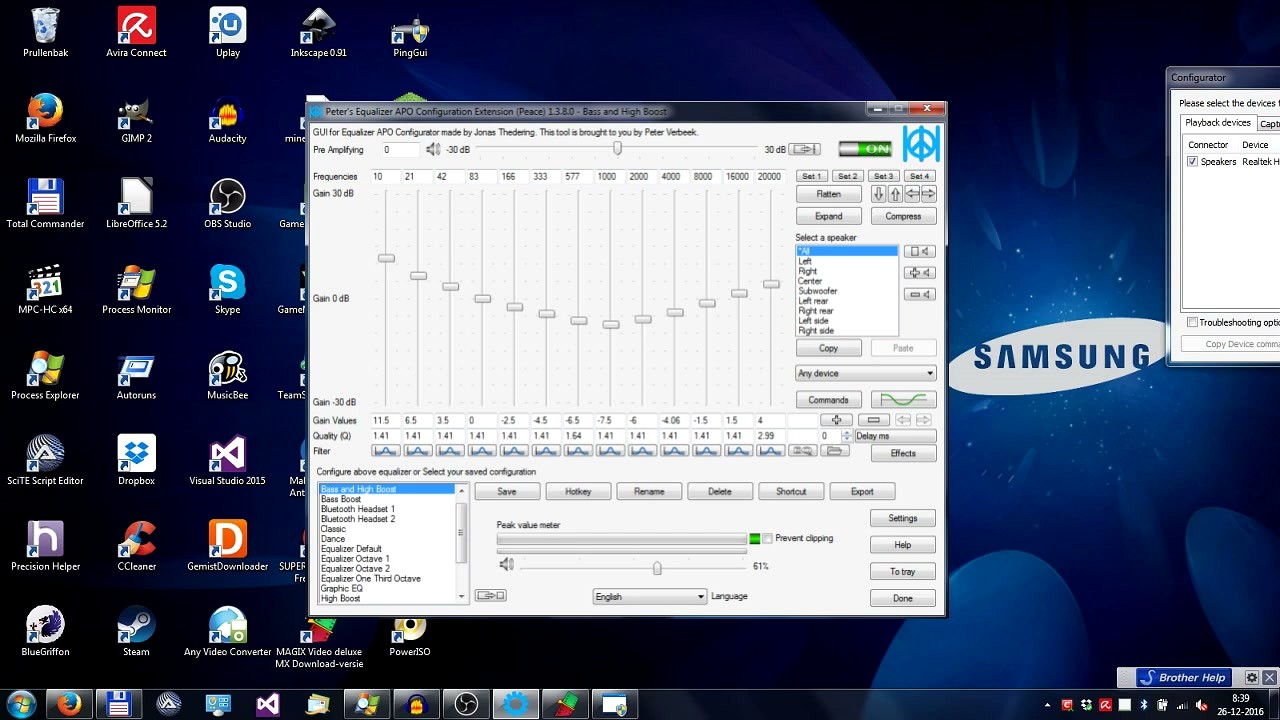
Your preset now appears in the list alongside built-in options like Bass Boost, Classic, Dance, and High Boost. Click any preset name to switch instantly. You can create as many presets as you want — one for music, one for gaming, one for movies.
Using AutoEQ for Headphones
If you own popular headphones, skip the manual sliders entirely. Click the AutoEQ button (or tab), search for your headphone brand and model, and Peace automatically loads a correction profile tuned to flatten your headphone’s frequency response. This feature pulls from a database of over 1,000 measured headphone models maintained by the open-source AutoEQ project.
Handy Keyboard Shortcuts
| Shortcut | Action |
|---|---|
| Ctrl + S | Save current preset |
| Ctrl + Z | Undo last slider change |
| Ctrl + C | Copy current EQ values |
| Ctrl + V | Paste EQ values |
| Double-click slider | Reset that band to 0 dB |
Tips, Tricks & Best Practices
Keep boosts small. A common beginner mistake is cranking sliders to +12 dB. This causes distortion and clipping even with pre-amp reduction. Stick to +/- 6 dB or less for natural results. If you need more bass, consider using the Bass Boost effect in the Effects panel instead of raw slider boosts.
Use per-device configurations. Peace lets you assign different EQ profiles to different playback devices. If you switch between speakers and headphones regularly, create a separate preset for each and use the device dropdown (or Automation window) to auto-switch when a device connects.
Try the Graph window. Click the graph icon or go to the Graph tab to see a real-time frequency response curve. This shows you the combined effect of all your sliders as a single smooth line, making it much easier to spot problem areas than staring at 31 individual values.
Power-User Features Most People Miss
- MIDI controller support — map physical knobs and faders to Peace sliders for hands-on mixing. Set this up in Settings > MIDI.
- Hotkey presets — assign a keyboard shortcut to any saved preset through the Hotkey button, so you can switch EQ profiles without opening the window.
- Crossfeed effect — found in the Effects panel. Blends a bit of the left channel into the right and vice versa, making headphone listening sound more like speakers. Reduces fatigue on long listening sessions.
- System tray quick-switch — right-click Peace’s tray icon to see all your presets in a popup menu. One click to switch, no need to open the main window.
- Command-line control — run
Peace.exe /preset="Warm Music"to activate a specific preset from scripts or batch files.
Where to Get Help
The Peace wiki on SourceForge has official documentation. For community support, the r/headphones and r/oratory1990 subreddits are the most active places for Peace and Equalizer APO discussion. Peter Verbeek also maintains a tutorial playlist on YouTube with 20+ videos covering every feature in detail.
Peace checks for updates automatically if you left the checkbox enabled. When a new version is available, the Setup Tool opens on launch and shows the update option on the Install Peace tab.
Ready to transform your PC audio? Grab Peace Equalizer and start building your perfect sound profile.
Download Peace EqualizerFrequently Asked Questions
Answers to common questions about Peace Equalizer, from installation and safety to advanced EQ configuration and troubleshooting.
Is Peace Equalizer safe to download?
Yes, Peace Equalizer is safe. The software is developed by Peter Verbeek and distributed exclusively through SourceForge, where it has earned a 4.9/5 rating from 134 reviews and a Staff Pick badge. It contains no adware, spyware, or bundled toolbars.
One thing to be aware of: Peace is written in AutoIt, and some antivirus programs flag AutoIt-compiled executables as false positives. This is a known issue across all AutoIt-based applications, not specific to Peace. If Windows Defender or your antivirus quarantines PeaceSetup.exe (55.7 MB), you can safely whitelist it. The developer documents this on the SourceForge wiki and notes that no actual malicious code exists in the binary.
Peace runs entirely offline. It reads and writes only to Equalizer APO’s configuration files in C:\Program Files\EqualizerAPO\config\ and does not phone home or collect any user data. The source code is available under the GPLv2 license.
- Download only from the official SourceForge project page
- If flagged by antivirus, whitelist Peace.exe in your security settings
- The developer explicitly warns about scam websites that use the Peace Equalizer name
- Check the file hash against the SourceForge listing to verify authenticity
Pro tip: Bookmark the official SourceForge URL directly. Several fake download sites have appeared that bundle adware with modified Peace installers.
For the verified download link, visit our download section.
Where is the official safe download for Peace Equalizer?
The only official download source for Peace Equalizer is the SourceForge project page maintained by Peter Verbeek. There is no official website beyond SourceForge, and the developer has posted warnings about third-party sites distributing modified or bundled versions of the installer.
The official PeaceSetup.exe installer is 55.7 MB for the 64-bit build. If a download site offers a file that is significantly smaller (under 10 MB) or larger (over 100 MB), that file likely contains bundled software or is a different program entirely. The 32-bit build is slightly smaller but still in the same range. Both versions are available on the same SourceForge downloads page.
- Go to the SourceForge project:
sourceforge.net/projects/peace-equalizer-apo-extension/ - Click the green “Download” button for PeaceSetup.exe
- If prompted for a mirror, any SourceForge mirror is fine
- Verify the downloaded file size matches 55.7 MB (64-bit)
You also need Equalizer APO installed first. Download Equalizer APO (version 1.4, the current stable release) from its own SourceForge page before installing Peace.
Pro tip: SourceForge shows weekly download counts on the project page. Peace averages 30,000+ downloads per week, which is a good sign that you are on the correct page.
Our download section links directly to the official SourceForge files.
Does Peace Equalizer work on Windows 11?
Yes, Peace Equalizer works on Windows 11, including the latest 24H2 update. It also supports Windows 10 (all builds including 22H2), Windows 8.1, Windows 8, Windows 7, and Windows Vista. Both 32-bit and 64-bit editions are supported.
On Windows 11, the recommended installation mode for Equalizer APO is SFX/EFX, which works with most audio devices. If your audio stops working or Peace has no effect after installation, open the Equalizer APO Configurator from the Start Menu, click “Troubleshooting options” next to your device, and try switching to SFX/MFX mode. Reboot after changing the mode. Some Windows 11 users have also needed to disable the built-in “Enhance audio” toggle in Settings > System > Sound > Properties for their output device.
- Windows 11 24H2, 23H2, 22H2 – all confirmed working
- Default APO mode: SFX/EFX (try SFX/MFX if no effect)
- Disable “Enhance audio” in Windows Sound settings if conflicts occur
- Reboot required after every Configurator change
Pro tip: Windows 11 feature updates occasionally detach Equalizer APO from audio devices. After any major Windows update, test your audio. If the EQ stops working, just re-run the Equalizer APO Configurator and click OK to reattach it.
Check the full list of supported platforms on our system requirements page.
Does Peace Equalizer work with Bluetooth headphones?
Peace Equalizer works with Bluetooth headphones, but there are a few quirks to know about. The main issue is that Windows sometimes creates a new audio device entry each time a Bluetooth headphone reconnects, and Equalizer APO needs to be attached to the specific device entry that Windows is using.
When you first pair your Bluetooth headphones, you install Equalizer APO and check the device in the Configurator. If you disconnect and reconnect the headphones later and the EQ stops working, Windows may have assigned a different device ID. You will need to reopen the Configurator and check the new entry. Some Bluetooth devices create two entries: one for audio playback (A2DP Sink) and one for hands-free calls (HFP). Make sure you enable APO on the correct one.
- Pair your Bluetooth headphones and keep them connected
- Open Equalizer APO Configurator and check the Bluetooth device entry
- Click OK and reboot
- If the EQ stops after reconnecting, reopen the Configurator and check for new device entries
- In Devices and Printers, limit Bluetooth to audio sink/source services only
Bluetooth codec switching (SBC, AAC, aptX, LDAC) does not directly affect Peace compatibility. However, codec changes can trigger a device ID change on some adapters, which disconnects APO.
Pro tip: Keep your Bluetooth headphones in a “Connected” state rather than just “Paired” in Windows Bluetooth settings. This reduces the chance of Windows creating a new device ID each time.
For headphone-specific EQ profiles, see the AutoEQ feature in our features overview.
Can I use Peace Equalizer without Equalizer APO?
No. Peace Equalizer is a graphical front-end for Equalizer APO, and it does nothing without it. Equalizer APO is the engine that processes audio at the system level, while Peace provides the sliders, graphs, presets, and effects interface. Think of it like a TV remote without a TV.
Equalizer APO (current version 1.4) installs as a Windows Audio Processing Object, which sits in the audio pipeline between your applications and your output device. Peace reads and writes to Equalizer APO’s configuration files located in C:\Program Files\EqualizerAPO\config\. When you move a slider in Peace, it updates a text file called peace.txt, and Equalizer APO picks up the change in real time.
If you try to launch Peace.exe without Equalizer APO installed, you will get a “config.txt not found” error because the expected folder structure does not exist.
- Download and install Equalizer APO first (version 1.4, free, from SourceForge)
- During APO installation, check the box next to your playback device
- Reboot Windows
- Then install Peace Equalizer (v1.6.9.11, 55.7 MB installer)
Pro tip: If you already have Equalizer APO’s built-in Configuration Editor open, close it before launching Peace. Both tools write to the same config files, and running them simultaneously can cause conflicts.
Follow the complete installation walkthrough in our getting started guide.
Is Peace Equalizer completely free to download and use?
Yes, Peace Equalizer is 100% free. There is no paid version, no trial period, no feature limitations, and no subscription. Every feature you see in the interface is available from day one without paying anything.
Peace is distributed as freeware, and Equalizer APO (the required audio engine) is free and open-source under the GPLv2 license. The developer, Peter Verbeek, accepts voluntary donations through PayPal and Bitcoin. Starting in version 1.6.1.2, a small donation section appears at the bottom of the Peace interface with payment icons, but this is entirely optional and does not gate any features.
For comparison, here is what competing audio equalizers charge:
- FxSound: Free and open-source (previously sold as DFX Audio Enhancer for $19.99)
- Boom 3D: $19.99/year or $39.99 lifetime license
- Dolby Atmos for Headphones: $14.99 one-time on Microsoft Store
- Letasoft Sound Booster: $19.95 after a 14-day trial
Peace gives you more granular control (31-band parametric EQ vs. 9 or 10 bands in most paid alternatives) without any cost at all.
Pro tip: If you find Peace useful, consider donating to support development. The donation link is in the Peace GUI under the main window, or on the SourceForge project page.
Download Peace Equalizer at no cost from our download section.
What is the difference between Peace Equalizer and Equalizer APO?
Equalizer APO is the audio processing engine. Peace Equalizer is the graphical interface that makes it usable. You need both, but they do very different jobs.
Equalizer APO (version 1.4) installs as a system-wide Audio Processing Object in Windows. It processes audio in real time with minimal CPU overhead and supports parametric EQ, graphic EQ, convolution, delay, and channel routing. Its built-in Configuration Editor is functional but minimal: text-based filter lists, basic sliders, and no visual feedback. For audiophiles comfortable editing text configuration files, APO’s editor works fine.
Peace (version 1.6.9.11) replaces that editor with a full GUI. It adds 31-band graphic EQ sliders, a real-time frequency response graph, an effects panel with crossfeed and reverb, an AutoEQ button that searches over 1,000 headphone profiles, preset management with hotkey switching, device-specific profiles, MIDI controller support, and a system tray icon for quick access. All of this writes back to the same config files APO reads.
- Equalizer APO alone: Powerful engine, minimal GUI, steep learning curve
- Peace + APO: Same engine, visual sliders, presets, effects panel, AutoEQ integration
- Configuration Editor (APO built-in): Text filter list, basic sliders, no presets
Pro tip: You can use Peace and still add raw Equalizer APO commands through Peace’s “Commands” window. This gives you the best of both: visual EQ plus direct access to advanced features like convolution filters and impulse responses.
See what Peace adds in our features section.
How do I download and install Peace Equalizer step by step?
Installing Peace Equalizer takes about five minutes and requires two separate downloads: Equalizer APO first, then Peace. Here is the full process.
- Install Equalizer APO: Download Equalizer APO version 1.4 from its SourceForge page. Run the installer. During setup, the Configurator window opens automatically. Check the box next to your primary playback device (speakers or headphones). Click Close.
- Reboot Windows: This step is mandatory. APO installs as a system-level driver and needs a restart to load into the audio pipeline.
- Download Peace Equalizer: Get PeaceSetup.exe (55.7 MB, 64-bit) from the official SourceForge project page.
- Run PeaceSetup.exe: The installer detects your Equalizer APO installation automatically and places Peace.exe into
C:\Program Files\EqualizerAPO\config\. - Launch Peace: Open Peace from the Start Menu or desktop shortcut. You should see the 31-band EQ slider interface. Move a slider and play audio to confirm it works.
If Peace launches but moving sliders has no audible effect, the most likely cause is that Equalizer APO is not attached to your active audio device. Open the Equalizer APO Configurator, check the correct device, and reboot again.
Pro tip: If you have multiple audio devices (speakers, headphones, USB DAC), check all of them in the Configurator during initial setup. Peace lets you create separate EQ profiles for each device later.
Our getting started guide covers the full installation with screenshots.
How to fix Peace Equalizer installation errors on Windows?
Most Peace Equalizer installation problems come from Equalizer APO, not from Peace itself. Here are the specific errors people hit and how to fix each one.
“config.txt not found” when launching Peace: This means Peace.exe is not in the correct folder. The installer should place it in C:\Program Files\EqualizerAPO\config\. If you downloaded the standalone Peace.exe instead of PeaceSetup.exe, you need to manually move it there. Also check that your antivirus is not sandboxing Peace and preventing it from seeing the config folder.
No audio after installing Equalizer APO: This happens when APO uses the wrong installation mode for your audio driver. Open the Configurator, click “Troubleshooting options” next to your device, and cycle through these modes with a reboot between each:
- SFX/EFX (default, works for most devices)
- SFX/MFX (fixes many problematic devices)
- LFX/GFX (older mode, needed for specific hardware like Motu M4)
Also try unchecking one or both “Use original APO” boxes in the Configurator troubleshooting options. If audio is completely gone and you cannot fix it, uninstall Equalizer APO to restore default audio, then reinstall with a different mode.
Windows SmartScreen blocks the installer: Click “More info” then “Run anyway.” PeaceSetup.exe is not digitally signed because Peter Verbeek is an independent developer.
Pro tip: If you use a USB DAC (Focusrite Scarlett, iBasso, Fosi, etc.), uninstall any vendor audio control software first. Manufacturer audio drivers sometimes conflict with Equalizer APO’s hook into the audio pipeline.
See our getting started guide for detailed troubleshooting steps.
Peace Equalizer stopped working after a Windows update – how do I fix it?
This is the single most common Peace Equalizer issue, and it has a straightforward fix. Windows feature updates frequently detach Equalizer APO from audio devices by changing device IDs or resetting audio driver hooks. It has been reported after Windows 10 22H2, Windows 11 23H2, Windows 11 24H2, and various cumulative updates.
The repair process takes about two minutes:
- Open the Equalizer APO Configurator from the Start Menu (not Peace itself)
- Check the box next to your playback device (it may have become unchecked)
- Click OK
- Reboot Windows
- Launch Peace and test audio
If that does not restore the EQ, try reinstalling Equalizer APO version 1.4 over itself without uninstalling first. This re-hooks the APO driver into the audio stack. Run the installer, select the same devices in the Configurator, and reboot.
On Windows 11, also check that the “Enhance audio” toggle in Settings > System > Sound > Properties is turned off for your output device. Microsoft’s built-in audio enhancement can conflict with third-party APOs.
Pro tip: After any Windows update, open Peace and play some music before assuming something broke. Sometimes Windows updates trigger a one-time audio device reset that resolves itself after the first reboot. If Peace’s sliders move but you hear no change, that is when you need the Configurator fix.
For more fixes, see our getting started guide.
Why does Peace Equalizer have no effect on my audio?
If Peace is open and sliders move but your audio sounds unchanged, the problem is almost always that Equalizer APO is not correctly attached to your active audio output device. Here are the specific causes and fixes, in order of likelihood.
Cause 1: Wrong device selected in Configurator. Open the Equalizer APO Configurator from the Start Menu. Make sure the checkbox is ticked next to the device you are actually using (not just any device). If you recently plugged in headphones or switched outputs, the active device may differ from what you set up originally.
Cause 2: Wrong APO mode. Click “Troubleshooting options” in the Configurator. Try switching between SFX/EFX, SFX/MFX, and LFX/GFX modes. Reboot after each change. Different audio drivers require different modes.
Cause 3: WASAPI Exclusive mode. If your music player uses WASAPI Exclusive output (common in foobar2000, Tidal, Qobuz), it bypasses all Audio Processing Objects including Equalizer APO. Switch to WASAPI Shared or DirectSound output in your player’s settings. ASIO output also bypasses APO entirely.
Cause 4: Pre-amp clipping. If you have boosted multiple frequency bands without lowering the pre-amplifier, the signal may be clipping. Check Peace’s peak meter. If it is red, reduce the pre-amp gain by the same amount as your highest boost.
- Check the Configurator device selection first
- Try all three APO modes with reboots
- Switch away from WASAPI Exclusive or ASIO output
- Lower pre-amp if the peak meter clips
Pro tip: Uncheck both “Use original APO” boxes in the Configurator’s troubleshooting options. This forces Equalizer APO to be the sole processor, which resolves conflicts on many systems.
Visit our features section to learn more about the pre-amp and peak monitoring tools.
How to fix audio pops, clicks, or distortion in Peace Equalizer?
Audio artifacts like pops, clicks, and distortion in Peace are usually caused by signal clipping or driver conflicts. Here is how to track down and fix the source.
The most common cause is boosting frequencies without adjusting the pre-amplifier. When you raise multiple EQ bands, the combined signal can exceed 0 dB, causing digital clipping (harsh distortion). Peace has a peak level meter in the main window. If it turns red during playback, your signal is clipping.
- Open Peace and look at the peak level meter while playing audio
- If the meter is red, reduce the pre-amp gain. A good rule: set the pre-amp to the negative of your highest boost (e.g., if you boosted +6 dB at 80 Hz, set pre-amp to -6 dB)
- If distortion persists, reduce extreme boosts. Gains above +10 dB on any band can introduce artifacts on some audio drivers
- Check your audio sample rate. Mismatched sample rates between your device settings and the source material can cause clicks
If the pops happen specifically when switching between audio sources (like tabbing from a game to a browser), the issue is likely the audio driver reinitializing the APO. Some users on r/headphones report that using SFX/MFX mode instead of SFX/EFX reduces these transition artifacts.
On older versions of Equalizer APO (before 0.9.1), high CPU usage from audiodg.exe could cause pops. Update to the current version 1.4 if you are on an older build.
Pro tip: Enable Peace’s “Background save” feature (added in v1.6.8.10) from Settings. This prevents brief audio glitches that occur when Peace writes configuration changes while audio is playing.
See our system requirements for recommended hardware specs.
How do I update Peace Equalizer to the latest version?
Peace Equalizer does not have an auto-update feature. You need to manually download each new version from SourceForge and install it over the existing one.
The current version is 1.6.9.11, released on November 2, 2025. To check which version you are running, look at the Peace window title bar or go to Peace > About. Previous widely-used versions include 1.6.8.10 (which added background save), 1.6.7.10, and 1.5.5.5.
- Visit the Peace Equalizer SourceForge project page
- Download the latest PeaceSetup.exe
- Run the installer. It will detect and upgrade the existing installation
- Your presets and configuration files are preserved during the upgrade
Equalizer APO updates separately. The current stable version is 1.4. You do not need to update APO every time Peace updates, but if you are still on APO 0.9 or 1.3, updating to 1.4 is recommended for better stability and the ability to apply Configurator changes without rebooting on most systems.
Version history and changelogs are posted on the SourceForge news feed at sourceforge.net/p/peace-equalizer-apo-extension/news/.
Pro tip: Before updating, use Peace’s “Back up and Restore” tab to save your current presets and configuration. Newer versions of Peace also auto-backup to a “Peace automatic configurations backup” folder in your Documents directory.
Get the latest version from our download section.
Peace Equalizer vs FxSound – which is better?
Peace Equalizer is better for users who want precise, granular audio control. FxSound is better for people who want a quick audio upgrade without touching individual EQ bands. They solve different problems.
Peace gives you up to 31 parametric EQ bands per channel with adjustable frequency, gain, and Q factor. It supports multi-channel configurations up to 9 speakers (7.1 surround plus custom layouts), has built-in AutoEQ with profiles for over 1,000 headphone models, and processes audio at the system APO level with no measurable latency.
FxSound (previously DFX Audio Enhancer, now free and open-source) offers a 9-10 band graphic EQ with one-click presets for clarity, ambience, bass boost, and stereo widening. Setup is simpler: one installer, no reboot, and instant results. The trade-off is that FxSound uses a virtual audio device, which introduces noticeable audio delay. Multiple Reddit users on r/headphones and r/LegionGo have reported FxSound lag issues in games, while Peace/APO has zero latency.
- EQ precision: Peace wins (31 parametric bands vs 9-10 graphic bands)
- Ease of setup: FxSound wins (single install, no reboot, instant effect)
- Gaming: Peace wins (zero latency vs. FxSound’s virtual device delay)
- Headphone correction: Peace wins (AutoEQ with 1,000+ profiles vs. manual tuning only)
- Multi-channel: Peace wins (up to 9 channels vs. stereo only)
- Casual listening: FxSound wins (presets sound good immediately with less effort)
Pro tip: If you use FxSound and want more control, you can actually run both. Equalizer APO processes audio before FxSound’s virtual device. But most users pick one or the other.
Explore what Peace offers in our features section.
What are the best alternatives to Peace Equalizer?
The main alternatives to Peace Equalizer depend on what you need: a simpler EQ, 3D surround, audio routing, or a cross-platform solution.
FxSound is the closest alternative for system-wide audio enhancement on Windows. It is free, open-source, and easier to set up than Peace, but limited to stereo with fewer EQ bands. Good for casual listeners who want better audio in one click.
Boom 3D ($19.99/year or $39.99 lifetime) specializes in virtual 3D surround sound and works on both Windows and macOS. It has a basic EQ but focuses more on immersive spatial audio for headphones. If you watch a lot of movies or play story-driven games, Boom 3D’s surround effect can be impressive.
Voicemeeter (donationware by VB-Audio) is not really an EQ competitor. It is an audio routing and mixing tool used by streamers and podcasters. It has basic parametric EQ per channel strip, but its strength is routing multiple audio sources to different outputs. You can actually use Voicemeeter and Peace together: APO handles EQ, Voicemeeter handles routing.
SteelSeries Sonar (GG) is free and gaming-focused. It has a 10-band parametric EQ, virtual surround, and ChatMix. If you are primarily a gamer using a SteelSeries headset, Sonar is solid. For non-SteelSeries hardware, Peace gives you more control.
EasyEffects (Linux only, formerly PulseEffects) is the closest Linux equivalent. It can even import Equalizer APO format presets directly.
Pro tip: If you are on macOS, your options are Boom 3D, SoundSource ($39 by Rogue Amoeba), or eqMac (free, open-source). Peace and Equalizer APO are Windows-only.
See how Peace compares on our features page.
How do I set up AutoEQ in Peace Equalizer for my headphones?
Peace has a built-in AutoEQ feature that applies scientifically measured EQ corrections for over 1,000 headphone models, targeting frequency responses like the Harman curve. Setting it up takes about 30 seconds.
AutoEQ works by loading a parametric EQ profile specific to your headphone model. These profiles compensate for each headphone’s frequency response deviations, bringing it closer to a neutral or Harman-tuned target. The profiles come from the AutoEQ project, which uses measurement data from sources like oratory1990, Rtings, and Crinacle.
- Open Peace Equalizer and click the AutoEQ button in the toolbar
- Type your headphone model name in the search box
- Select your headphones from the results list and choose a target curve (Harman is the most popular)
- Click Apply. Peace loads the parametric EQ bands automatically
- Adjust the pre-amp gain if the peak meter clips during playback
If your headphones are not in the AutoEQ database, you can manually import oratory1990’s presets. Download the PDF from r/oratory1990’s EQ list, then enter each filter’s frequency, gain (dB), and Q factor into Peace’s parametric bands. Make sure to change Peace’s settings: set “Up/Down dB value” to 0.1 and “Snap to dB gain” to 0.1 for the precision these presets require.
You can also import directly from autoeq.app or the AutoEQ GitHub repository by downloading the ParametricEQ.txt file and importing it through Peace’s Import button.
Pro tip: When entering oratory1990 presets manually, make sure you select filter types labeled “in dB” in Peace. Filters without the “dB” label do not allow Q-factor adjustments, and you will get wrong results.
Learn about all EQ features in our features section.
What are the best Peace Equalizer presets for gaming?
For competitive gaming, the most effective Peace Equalizer preset boosts the 2-4 kHz frequency range where footsteps and environmental audio cues are most prominent. There is no single “best” preset because it depends on your game and headphones, but the approach used by most competitive players on r/headphones follows a consistent pattern.
Start with a flat (zeroed-out) EQ and make these targeted adjustments:
- Boost 2 kHz by +3 to +5 dB: This is where footstep transients sit in most FPS games (Valorant, CS2, Apex Legends)
- Boost 3-4 kHz by +2 to +4 dB: Enhances gunshot directionality and dialogue clarity
- Cut 100-200 Hz by -3 to -5 dB: Reduces bass rumble that masks positional audio cues
- Keep 6-10 kHz flat or slightly boosted (+1 to +2 dB): Preserves high-frequency detail for spatial awareness
- Set pre-amp to -5 dB: Prevents clipping from the combined boosts
Peace has a latency advantage over alternatives like FxSound for gaming. Because Equalizer APO runs as a system-level Audio Processing Object rather than routing through a virtual device, there is no measurable audio delay. This matters in competitive games where audio timing affects reaction speed.
For surround sound in games, Peace’s crossfeed effect can improve headphone spatialization. Find it in the Effects panel. Set the crossfeed level between 20-40% for subtle widening without losing directional accuracy.
Pro tip: Save your gaming preset and assign it a hotkey in Peace’s settings. You can then switch between your music EQ and gaming EQ instantly with a keyboard shortcut, or set Peace to auto-switch profiles based on the active application.
Download Peace and start tuning your game audio from our download section.
How do I boost bass with Peace Equalizer?
Boosting bass in Peace Equalizer takes a few slider adjustments in the low-frequency range. Here is how to do it properly without introducing distortion or muddiness.
The bass frequencies in Peace’s 31-band EQ span from 20 Hz to about 250 Hz. Sub-bass (the deep rumble you feel more than hear) sits between 20-60 Hz. Mid-bass (the punchy kick drum and bass guitar range) sits between 60-250 Hz. Most people wanting “more bass” actually want mid-bass emphasis around 80-125 Hz.
- Open Peace and locate the sliders for 63 Hz, 80 Hz, 100 Hz, and 125 Hz
- Raise each by +4 to +6 dB for moderate bass boost
- Optionally raise 40 Hz and 50 Hz by +2 to +3 dB for sub-bass presence
- Reduce the pre-amp gain by the same amount as your highest boost (e.g., -6 dB) to prevent clipping
- Play some bass-heavy music and listen for distortion. If the peak meter goes red, lower the pre-amp further
Peace also has a dedicated Bass Boost control in the Effects panel. This is a one-knob solution that applies a low-shelf boost, which is simpler than adjusting individual bands. Open the Effects panel, find the Bass adjustment, and increase it gradually.
Be careful not to boost too aggressively. Gains above +10 dB in the bass range can cause audible distortion on some audio drivers and cheap headphones. If your headphones distort at high bass levels, the driver is physically unable to reproduce those frequencies at that volume.
Pro tip: For headphones, use the AutoEQ feature first to correct your headphone’s frequency response, then add a subtle bass shelf on top. This gives you cleaner bass than just cranking the low-end sliders raw.
See all EQ and effects options in our features overview.
Ready to get precision audio control on your Windows PC?
Download Peace Equalizer